
Documentation & Handbook
How to use texttoink
Type or paste your text, pick a handwriting and paper, and the pages draw themselves next to it. This guide walks through every part of the editor.
Your first page
Creating a handwritten page takes only three simple steps. Everything you write in the left-hand editor is rendered in real time onto lined paper beside it.
Type or paste text
Write your text or paste notes directly into the rich-text editor on the left.
Watch it draw
The handwriting engine draws your words onto ruled paper with realistic ink physics.
Download pages
When finished, click "Download pages" in the studio bar to export PDF, PNG, or ZIP.
Live preview
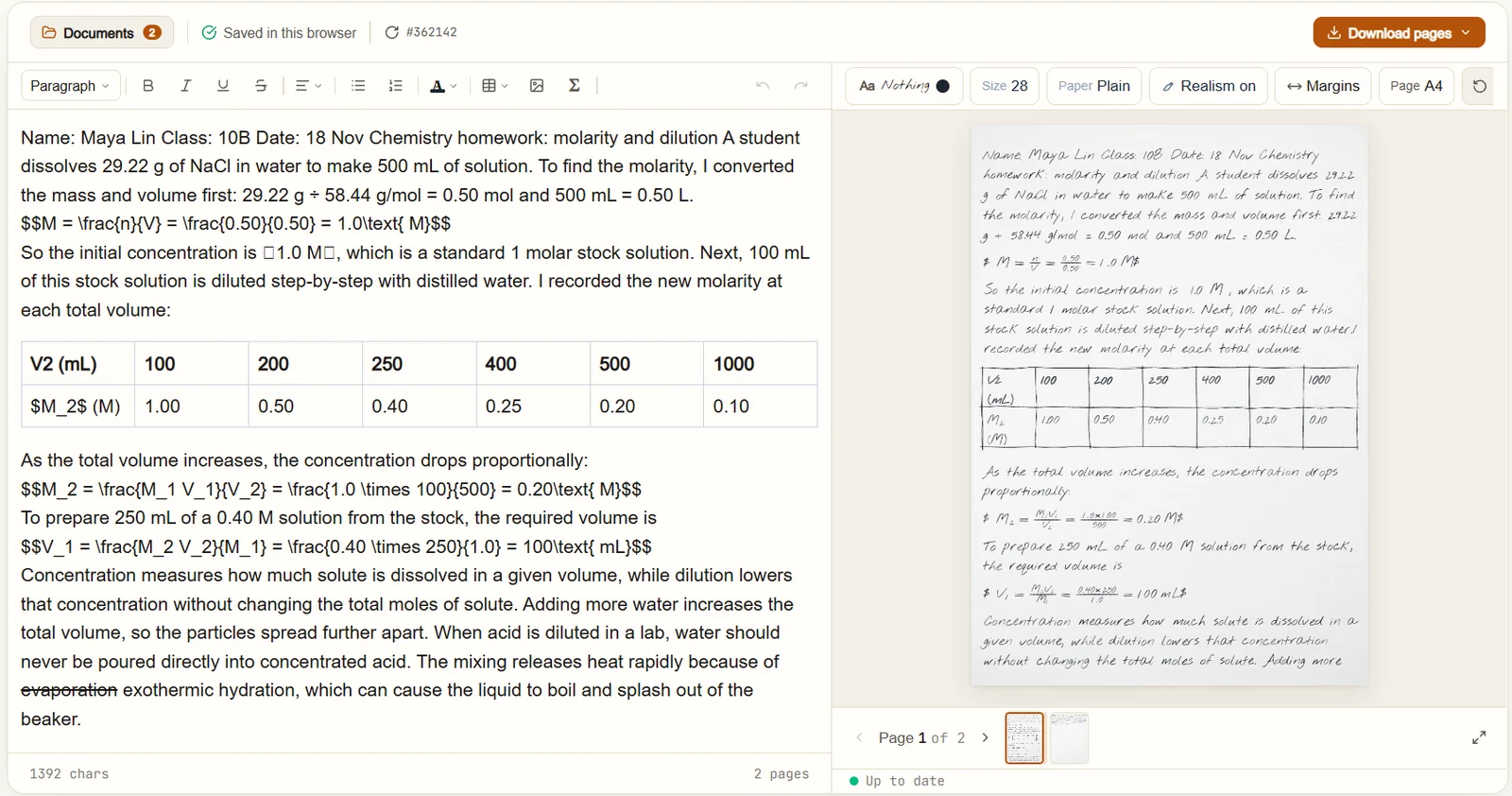
The live preview pane on the right renders exactly what will appear on your printed or exported page.
Status indicator: Above the page, a live status line informs you whether the rendering engine is currently drawing or "Up to date", along with the total page count.
Page navigation: Use the previous and next arrow buttons at the top of the preview pane to move between sheets. Click the page thumbnail icon to open a slide-out drawer showing miniature previews of every page in your document.
Full-screen inspection: Click the expand icon in the preview header to open the high-resolution zoom modal. This allows you to inspect ink bleed, ruled line alignment, and margins at 100% scale.
Progressive rendering: While you type long passages, a soft blur applies momentarily to newly calculating sections, preventing distracting page jumps while stroke vectors compute.
Writing and pasting
The rich-text editor supports full formatting, keyboard shortcuts, and intelligent paste cleanup.
The editor toolbar contains essential formatting controls: bold, italic, underline, strikethrough, three heading levels, bulleted lists, numbered lists, text alignment, and ink color chips.
Live document statistics: The bottom footer of the editor displays real-time word count, character count, and calculated page count, updated on every keystroke.
Smart paste conversion: When you copy text from web articles, Word documents, or Google Docs, texttoink automatically preserves headings, bullet lists, bold emphasis, and line breaks while discarding unwanted background styles and fonts.
Mathematical formulas
A full LaTeX mathematical engine is built into texttoink to turn mathematical equations into authentic handwritten symbols.
Click the Σ button in the editor toolbar or press Ctrl + K (Cmd + K on Mac) to open the Formula dialog.
- Inline vs Block: Select "Inline" to insert expressions like
$x^2 + y^2 = r^2$directly inside prose, or "Block" to center equations on their own dedicated line. - Quick-insert tabs: Browse snippet categories for fractions, roots, integrals, summations, matrices, Greek letters, and common physics operators. Clicking any snippet inserts valid LaTeX syntax into the code box.
- Live handwritten preview: As you type LaTeX code, a preview area underneath displays the exact handwritten formula before you insert it into your document.
Tables
Create clean handwritten tables with automatic column spacing and cell wrapping.
Click the table icon in the editor toolbar and drag across the grid picker to create a table up to 10 columns by 10 rows.
When your cursor is inside a table, a floating ... menu appears above the cell. Use it to add rows above or below, insert columns left or right, toggle the header row highlight, or delete the table.
Press Tab to jump to the next cell and Shift + Tab to return to the previous cell.
Images and sketch look
Embed diagrams, charts, and illustrations directly into your handwritten notes.
Click the image icon in the toolbar, drag and drop an image file into the editor, or paste an image from your clipboard (PNG, JPG, WebP, GIF supported).
Alignment controls: Clicking an image in the editor opens contextual alignment buttons to position it left, center, or right on the page.
Sketch Look toggle: Toggle "Sketch Look" on in the image menu to apply an organic pencil-sketch filter. This softens photographic contrast and adds subtle graphite grain so imported diagrams blend naturally with your handwritten text.
Styling and the realism engine
Customise paper textures, handwriting styles, line heights, and organic stroke irregularities.
Handwriting fonts
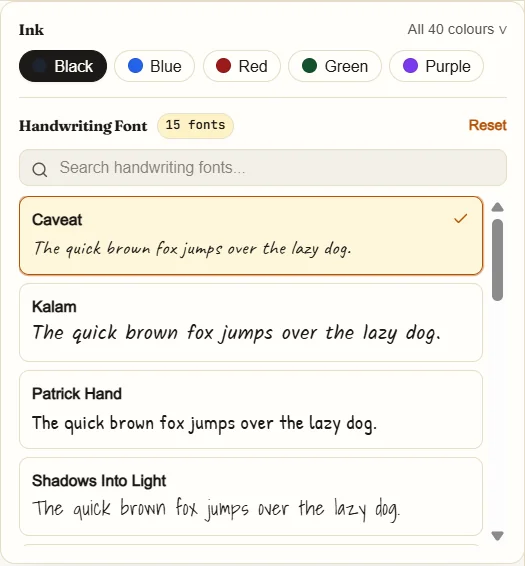
Open the font dropdown in the studio bar to select from authentic handwriting styles. Each font includes unique stroke textures, baseline behaviors, and character connections ranging from relaxed student printing to refined cursive script.
You can also upload your own handwriting fonts in .ttf, .otf, .woff, or .woff2 formats (up to 10 MB per file, up to 10 custom fonts). Click the font button and scroll to "Your own handwriting" to upload or drag and drop a font file. The studio automatically measures the font's metrics and calibrates baseline heights to sit naturally on ruled lines.
Custom fonts are stored locally in your browser's IndexedDB and never uploaded to external servers. To learn how to digitize your handwriting into a font, see our Create Font guide.
Paper and lines
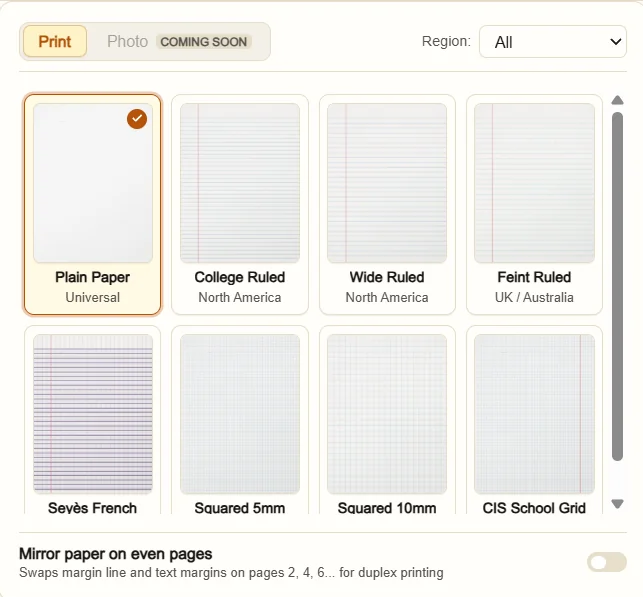
Choose from standard stationery options including College Ruled, Wide Ruled, Grid/Graph, Dot Matrix, and Plain Paper.
Realism engine
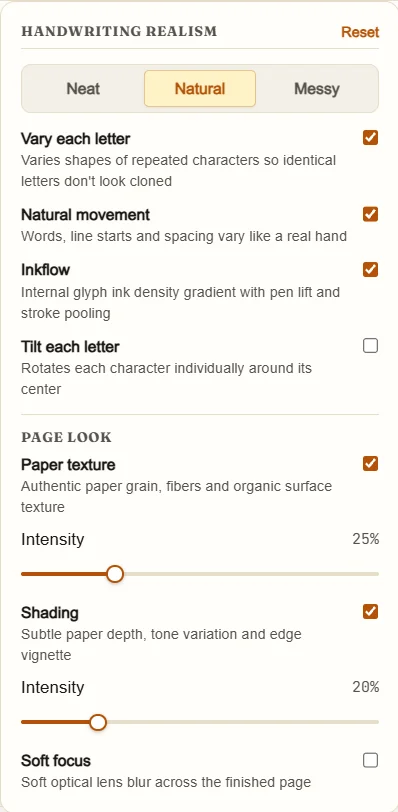
Human handwriting is never completely mechanical. Click the Realism icon in the settings bar to adjust physical irregularities:
- Slant variation: Introduces subtle angular drift between successive words.
- Baseline drift: Causes sentences to rise and dip gently across notebook lines.
- Spacing jitter: Adds micro-variations between letters and words.
- Stroke width wobble: Replicates variable pen pressure.
- Fountain-ink pooling: Darkens stroke intersections and terminal dots like real liquid ink.
Settings bar
The top studio bar houses your immediate styling tools: font family, font-size stepper buttons, line height slider, ink color chips (Royal Blue, Carbon Black, Crimson Red, Forest Green), margin guides, and paper size.

Downloading pages
Export high-resolution documents ready for submission, printing, or digital archiving.
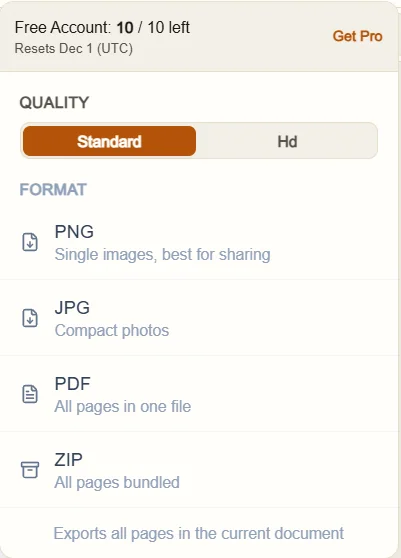
Click "Download pages" in the studio bar to open the export options:
- Standard vs HD: Standard quality generates 150 DPI pages suitable for screen reading and quick messaging. HD quality produces 300 DPI high-density pages with crisp edges and ink pooling for sharp physical printing.
- File formats: Choose PDF for multi-page documents, PNG for lossless digital images, JPG for compressed photos, or ZIP archive to download every sheet as individual numbered image files.
- Monthly quota: Free accounts receive 10 exported pages per calendar month. Quota resets automatically on your monthly billing cycle date. Live editing, previewing, and formatting remain unlimited at all times.
Documents and drafts
Your documents are automatically preserved locally so you never lose your progress.
Automatic autosave: Changes are written continuously to your browser's local IndexedDB storage. You can safely close your browser tab or shut down your machine at any point.
Documents drawer: Access "My documents" from your user avatar menu or the top bar to create new documents, rename existing assignments, duplicate templates, or delete drafts.
Keyboard shortcuts
Speed up your handwriting workflow with tested keyboard shortcuts.
| Action | Windows / Linux | macOS |
|---|---|---|
| Bold text | Ctrl + B | Cmd + B |
| Italic text | Ctrl + I | Cmd + I |
| Underline text | Ctrl + U | Cmd + U |
| Undo last change | Ctrl + Z | Cmd + Z |
| Redo change | Ctrl + Y / Ctrl + Shift + Z | Cmd + Shift + Z |
| Insert formula dialog | Ctrl + K | Cmd + K |
| Navigate next table cell | Tab | Tab |
| Navigate previous table cell | Shift + Tab | Shift + Tab |
| Soft line break | Shift + Enter | Shift + Enter |
Frequently asked questions
Clear answers to common questions about printing, paper calibration, formulas, and quotas.
Ready to craft your handwritten pages?
Open the live studio now to start typing notes, equations, and tables into authentic stationery handwriting.